Macro Recorder for Macintosh to Record and Playback Mouse and Keyboard Actions
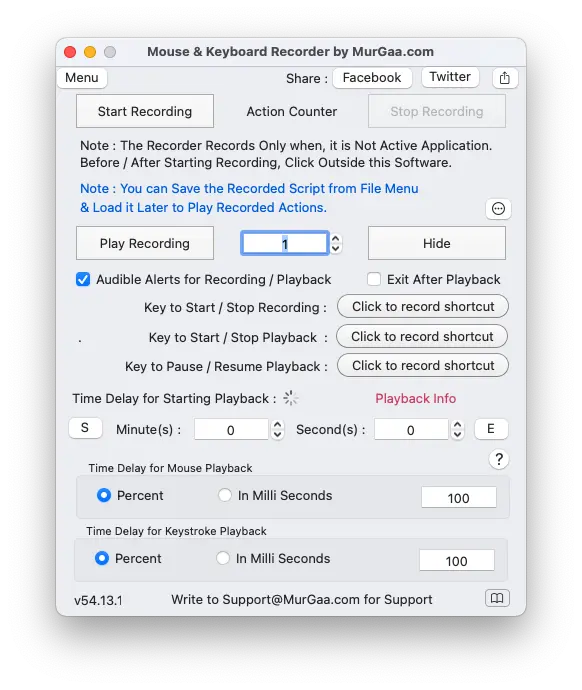
Now you can record mouse and keyboard actions with Mouse and Keyboard Recorder for Macintosh presented on this website. Once the actions are recorded, you can play them back single or multiple times at a configurable speed. Settings of the software allow you to control which mouse and keyboard actions will be recorded and enable you to configure various other parameters. Configurable keyboard shortcuts allow you to start or stop recording and playback. To record and play back mouse and keyboard actions, you need to grant Accessibility permission to this application.
How to Record and Playback Mouse and Keyboard Actions
- Download the free trial of the software from the Macro Recorder for Macintosh page. Carefully review all available parameters on the main screen of the software to understand all configurable parameters.
- Launch the application and grant it Accessibility permission. There is a button labeled Permission at the top of the software's main screen to configure Accessibility permission.
- Configure a keyboard shortcut to start or stop recording. Once configured, press the keyboard shortcut and start moving the mouse or pressing keyboard keys to record them. Once you have recorded the task to be repeated by the recorder, press the keyboard shortcut again to stop recording. The first time, it might be handy to click on the desktop, move the mouse cursor around, or perform basic calculations on the Calculator app as a simple test.
- Now configure a keyboard shortcut to start or stop playback.
- Press the configured keyboard shortcut to start playback, which will play back the recorded mouse and keyboard actions. You can press the shortcut again to stop playback.
Once you have configured the software to record and play back mouse and keyboard actions, you can adjust other parameters. You can change the Playback Counter's default value from 1 to 5 to play back the recorded actions 5 times. You can even configure its value to 0 to play back the recorded actions an infinite number of times until stopped. A configurable keyboard shortcut to pause or resume playback of recorded actions is also available on the main screen.
Control Playback Speed of Recorded Mouse and Keyboard Actions
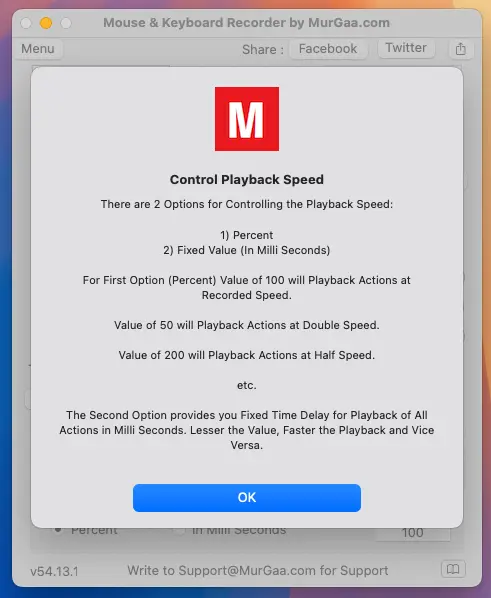
Recorded mouse and keyboard actions can be played back at a slower or faster speed using speed control parameters available at the bottom of the software window. The screenshot information box displayed below explains how to control playback speed using percentage control or a fixed time delay value.
Settings of Mouse and Keyboard Recorder
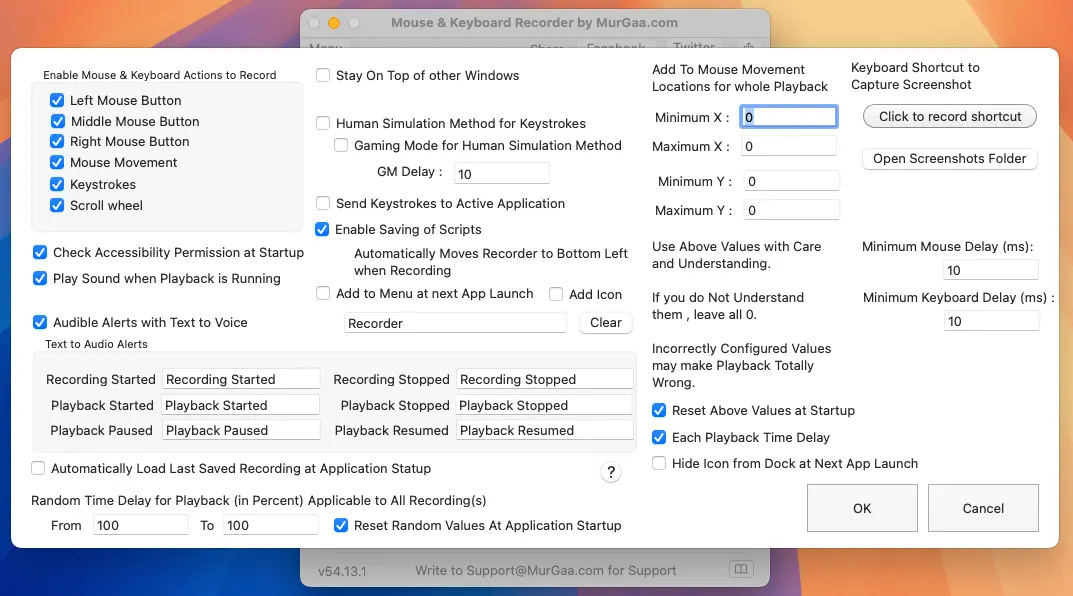
To fine-tune the behavior of the software, you can configure various parameters in the Settings menu of Mouse and Keyboard Recorder. You can enable which mouse and keyboard actions should be recorded, whether audio alerts using text-to-speech conversion should be played for recording/playback, and more.
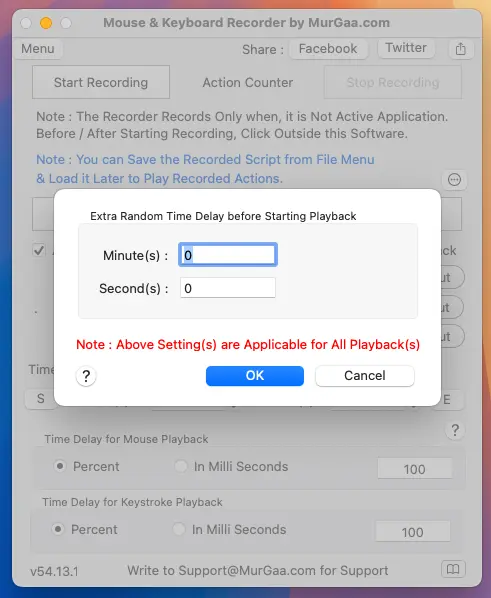
Random Time Delay Before Playback
You can enable a random time delay before playback starts (configured in minutes and seconds) after issuing the start playback command. This configurable time delay is global in nature and applies before each playback cycle.
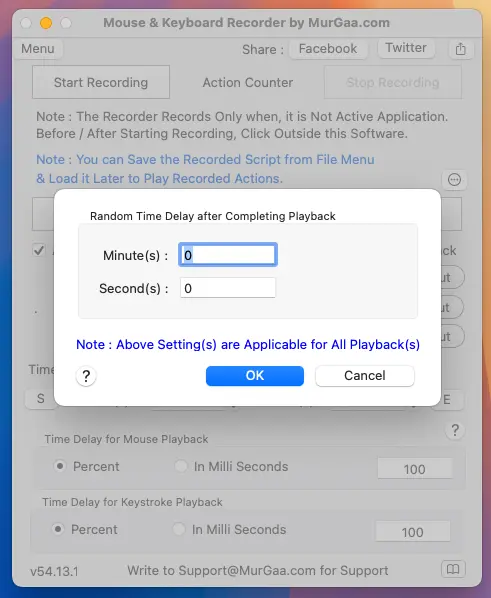
Random Time Delay After Playback
You can enable a random time delay after playback finishes executing recorded mouse and keyboard actions. This configurable time delay is global in nature and applies after each playback cycle.
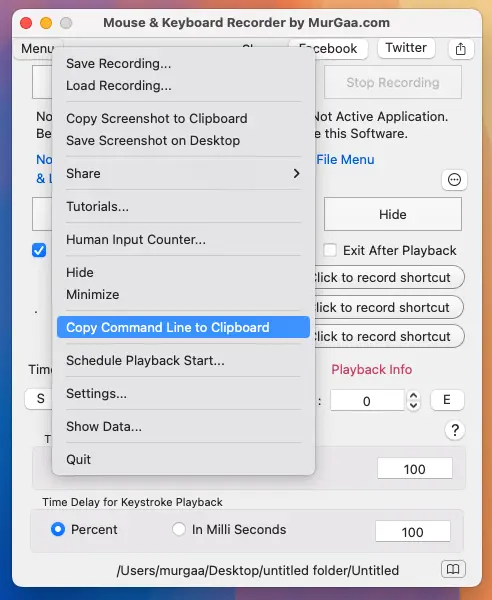
Right-Click Menu of Mouse and Keyboard Recorder
The context menu or right-click menu of this software allows you to perform additional control actions. You can capture a screenshot of the application, copy command-line parameters to execute recorded actions from Terminal or a script, open the Settings window, and perform other actions.
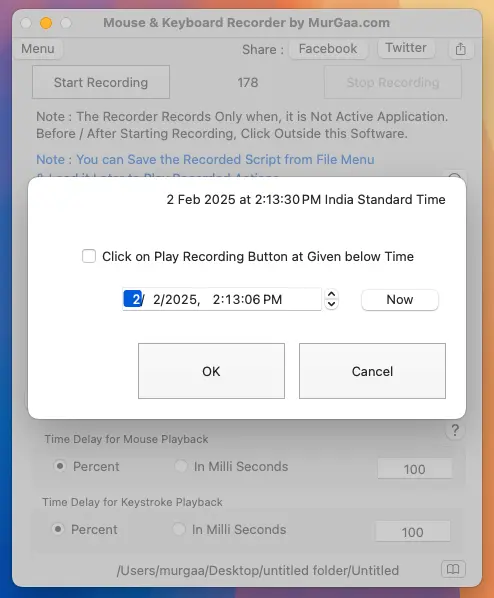
Schedule Playback of Recorded Mouse and Keyboard Actions
When you want to schedule playback for a later time, you can use the Schedule Playback screen to start playback at a future date and time. Once scheduled playback is enabled, you can minimize the application, and it will automatically start playback at the configured date and time.
Count Mouse and Keyboard Actions
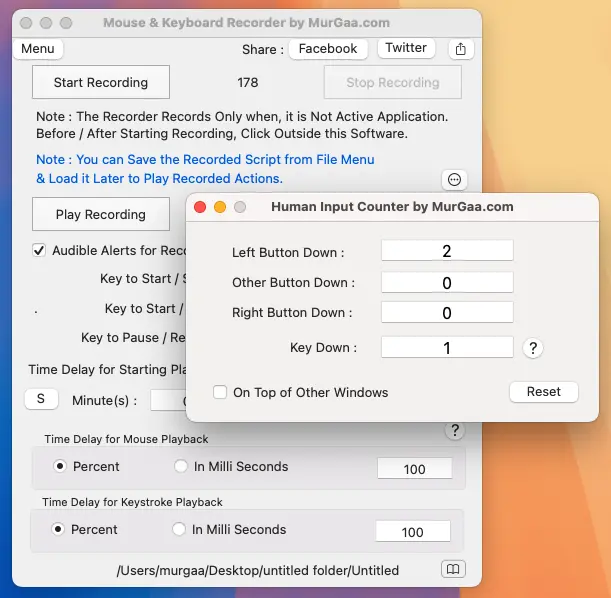
You can view the number of mouse and keyboard actions performed using the Human Input Counter. This counter can be set to stay on top of other windows, and you can reset the counted mouse and keyboard actions to zero by clicking the Reset button.